Cordary TeamOfficial Cordary account5 min read
Discord Roles and Permissions Explained: How to Set Them Up Safely
How Discord roles, the role hierarchy and permissions work, which permissions are dangerous, and how to set up staff roles and @everyone without opening a hole.
Updated
In this post
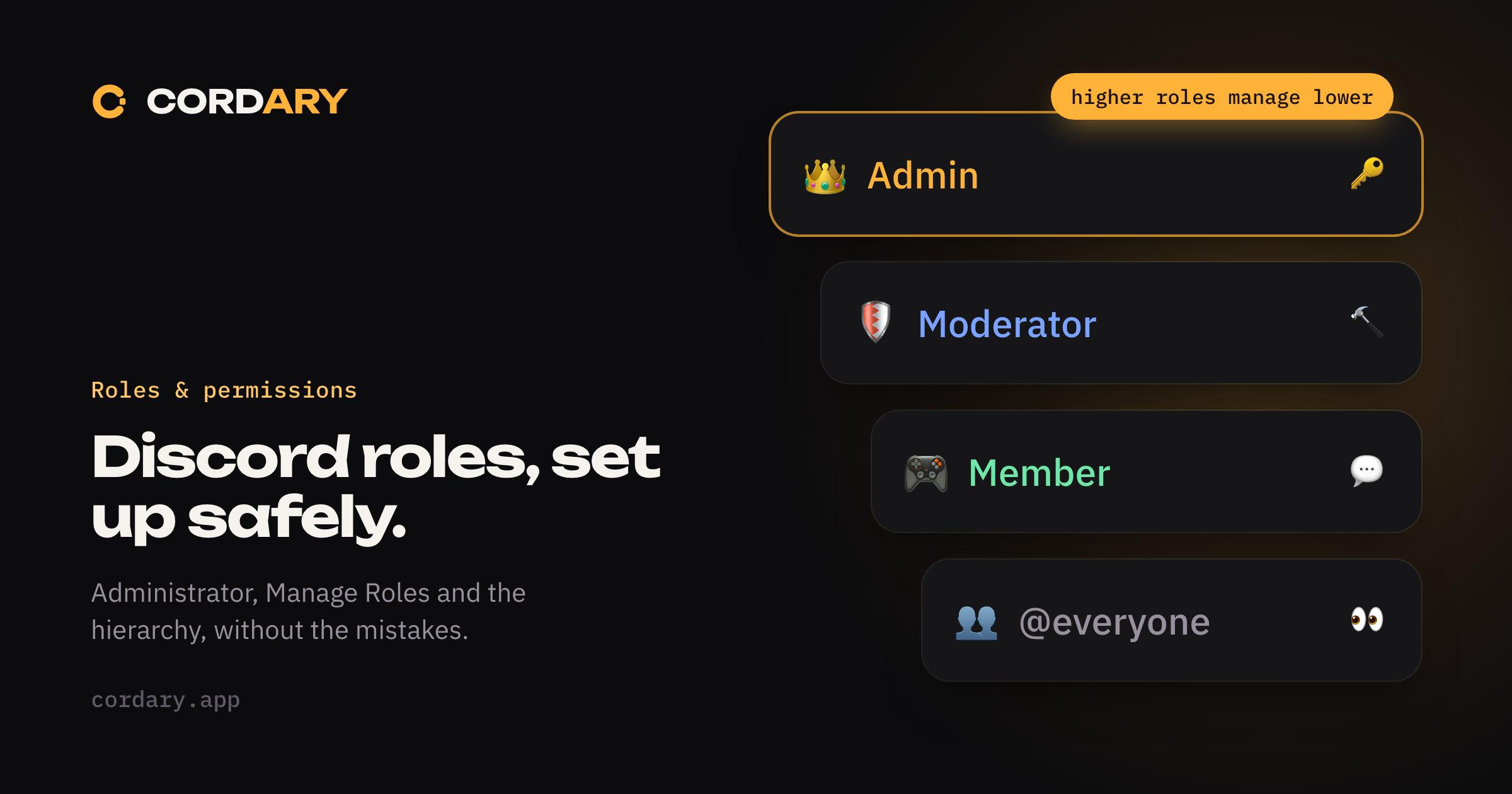
Roles are the most powerful tool in a Discord server, and the easiest to set up wrong. A single misplaced role can let a member delete channels, ping everyone, or promote themselves.
This guide explains how roles and permissions fit together, which permissions to guard, and how to set up a staff structure you can trust. If you're setting up a server from scratch, start with our beginner's guide and come back.
What a role is
A role is a named bundle of permissions you can give to members. It can also have a color, and it can show members in a separate group in the member list.
Every server has one built-in role, @everyone, which every member has automatically. Everything else you create is on top of it.
How permissions combine
A member can have several roles, and their permissions add up. If any of your roles allows something, you can do it, unless a channel setting says otherwise.
Roles set the baseline for the whole server. Then channels and categories can override it with Edit Channel → Permissions. A channel override can do one of three things for a role or member:
- Allow the permission in this channel
- Deny the permission in this channel
- Leave it unset and let the role's server-wide setting decide
Overrides are how you build private channels and read-only channels. They're also where most surprises come from: when several role overrides in one channel disagree, an explicit Allow beats a Deny. We cover that in why your private channel might not be private.
Two things skip all of this. The server owner can do anything, and anyone with Administrator bypasses channel overrides too.
The role hierarchy
The order of roles in Server Settings → Roles matters. The rule is simple:
A member can only manage roles that are below their highest role in the list.
That affects several things:
- Someone with Manage Roles can edit and assign only roles below their own highest role, and can only hand out permissions they have themselves.
- Moderators can only kick, ban or time out members whose highest role is below theirs.
- A bot can only manage roles below the bot's own role. If a bot needs to assign a role, drag the bot's role above it.
- The highest colored role decides the color of a member's name.
So keep the order deliberate:
| Position | Role | Why |
|---|---|---|
| Top | Server owner (you) | Can't be outranked |
| 2 | Admin | Rarely used |
| 3 | Moderator | Day-to-day enforcement |
| 4 | Helper or Event Team | Narrow jobs |
| 5 | Member | Everyone approved |
| Bottom | @everyone |
Baseline |
Bots sit near the top of the list, because they need to manage roles below them, but they should still have only the permissions they need.
Permissions worth guarding
Most permissions are harmless. A few are not. Be deliberate about who gets these:
| Permission | What it allows | Guidance |
|---|---|---|
| Administrator | Everything, and bypasses every channel override | Give it to as few people as possible, ideally just you |
| Manage Roles | Create and edit roles below your own | Admin only. It's a path to promotion |
| Manage Server | Change server settings and add bots | Admin only |
| Manage Channels | Create, edit and delete channels, and change their permissions | Admin, or a trusted channel manager |
| Manage Webhooks | Create webhooks that can post as anyone | Keep off @everyone |
| Mention @everyone, @here and All Roles | Pings the whole server | Staff only |
| Ban Members / Kick Members | Remove people | Moderators |
| Timeout Members | Temporarily mute someone | Moderators |
| Manage Messages | Delete and pin others' messages | Moderators |
If someone needs to do a job, give them the permission for that job, not Administrator.
How to set up staff roles safely
- Start with the smallest role that works. Give a new moderator Timeout, Manage Messages and Kick. Add Ban once you trust their judgment.
- Keep Administrator for you. If you need a co-owner, make that the only other Administrator and say so to the team.
- Put the roles in order. Drag Admin above Moderator and Moderator above Member.
- Don't give Manage Roles to moderators. It lets them edit roles below theirs, which may include granting people more than you intended.
- Use separate roles for separate jobs. An Event Team role with Manage Events is better than adding event permissions to Moderator.
- Review who holds each role every few months. People leave, and roles linger.
Getting @everyone right
@everyone is the role you can least afford to ignore, because every member has it, including the newest one. Anything you enable there, everyone can do.
For most servers, a safe baseline is:
- On: View Channels, Send Messages, Read Message History, Add Reactions, Connect, Speak
- Off: Mention @everyone, @here and All Roles; Manage Webhooks; Manage anything; Create Public Threads, if you don't want that clutter
Then use channel overrides to open things up for the roles that need it, rather than a loose baseline you have to keep closing. A gated channel works best when @everyone is denied View Channel and the intended role is allowed back in.
Common mistakes
- Giving a role Administrator "to make things work". It fixes the symptom and opens everything.
- Putting a bot's role too low. The bot can't assign the roles you wanted it to.
- Putting a staff role below a member role. It looks fine in the list but can't manage the people you wanted.
- Loose
@everyonepermissions. One enabled toggle becomes available to every member. - Using cosmetic roles for permissions. A color-only "Level 10" role shouldn't also grant powers. Keep cosmetic and permission roles separate.
- Forgetting channel overrides. A role with the right server-wide permissions can still be locked out of a channel.
- Leaving old roles around. Unused roles with permissions are a risk nobody remembers.
A safe-setup checklist
- Only you (and at most one other person) hold Administrator.
- Roles are ordered: Admin, Moderator, other staff, Member,
@everyone. - Moderators don't have Manage Roles, Manage Server or Administrator.
-
@everyonecan't mention everyone or manage webhooks. - Each bot has only the permissions it needs, and sits above only the roles it must manage.
- Cosmetic roles carry no permissions.
- You've checked the server with View Server As Role for Member and Moderator.
Letting Cordary draft the structure
Role and permission setups are where a tool earns its keep, because a mistake is easy to make and hard to spot. Cordary can draft your roles, their order and the channel permissions from a plain description. The draft shows what each change does, and nothing is applied until you approve it.
When you add Cordary, you choose what it holds. We recommend Administrator: a tool that builds your whole structure needs to reach every channel and give roles any permission you approve, and it only ever changes what you've reviewed. If you'd rather follow the "only what it needs" rule above, choose its standard set instead, which leaves out Administrator and Kick, Ban and Timeout. Either way, Cordary never moderates anyone itself, and like every bot it can only manage roles below its own.
For the full reference, see Discord's own permissions guide.
More in #guides
How to Use Cordary's Checkup: Findings, Fix This and Scheduled Checkups
A walk through Cordary's Checkup tab. Read the findings, fix one with a change you review, dismiss what's fine, run the full checkup, and set up scheduled checkups with an optional Discord post.
Should You Give a Discord Bot Administrator? When It's Fine and When It Isn't
Many Discord bots ask for Administrator. Here's what it really allows, when it's reasonable, when to say no, and how to check what a bot can do in your server.