Cordary TeamOfficial Cordary account5 min read
How to Reorganize an Existing Discord Server Without Starting Over
Clean up a running Discord server without losing members or messages: audit channels, regroup them, archive instead of deleting, and keep permissions intact.
In this post
- What's safe to change and what isn't
- Step 1: Audit what you have
- Step 2: Sketch the structure you want
- Step 3: Do the non-destructive work first
- Step 4: Check permissions after every move
- Step 5: Archive instead of deleting
- Step 6: Tell your members
- Step 7: Clean up the leftovers
- Common mistakes
- Reorganizing with Cordary
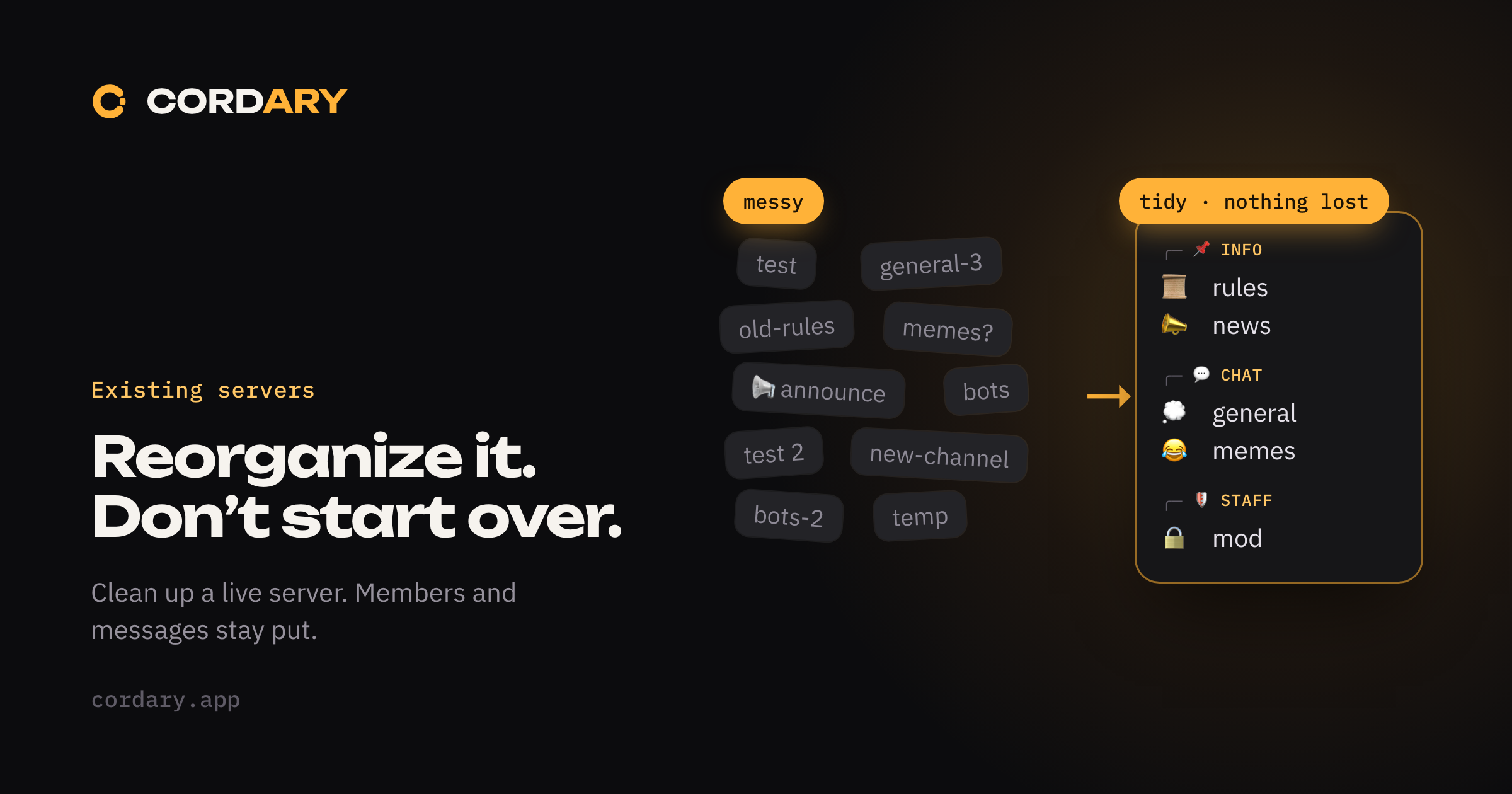
Every server that grows ends up cluttered: three versions of #general, a #test nobody remembers, announcements split across two channels, a staff area nobody can find. At some point the temptation is to delete everything and start over.
Don't. A fresh server loses your members, your history and every invite link you've ever shared. You can almost always fix the structure in place.
This guide shows how to reorganize a live community in a safe order. It builds on what we covered in how many channels a server needs.
What's safe to change and what isn't
Before you touch anything, know which changes are harmless and which are permanent.
| Change | Effect on messages and members |
|---|---|
| Rename a channel or category | Messages stay. Links to the channel keep working |
| Move a channel to another category | Messages stay. Check its permissions afterwards |
| Reorder channels | Nothing is lost |
| Change a channel's permissions | Messages stay, but who can see them changes |
| Rename or reorder roles | Members keep their roles |
| Delete a channel | Its messages are gone for good |
| Delete a role | Members lose it, along with its permissions |
The rule that follows: move and rename first, delete last. Almost every cleanup goal can be reached without deleting anything.
Step 1: Audit what you have
Open your channel list and write down every channel with three notes: what it's for, when it was last used, and who can see it.
Then sort each channel into one of four buckets:
- Keep: active and clearly named.
- Rename or move: useful, but in the wrong place or with a confusing name.
- Merge: overlaps with another channel (
#general,#general-2,#chat). - Retire: dead or finished.
Be honest about "last used". A channel that feels important but hasn't had a message in three months is a retire candidate.
Step 2: Sketch the structure you want
Before moving anything, draw the target on paper or in a doc. Group channels by purpose, not by when you created them:
- START HERE: welcome, rules
- INFORMATION: announcements, news
- COMMUNITY: general, help, media
- TOPICS: one category per game, project or interest
- VOICE: all voice channels
- STAFF: private channels
Aim for categories you can name in a word. If you can't say what a category is for, it probably shouldn't exist. Keep the number of categories small, because a long list of categories is its own kind of clutter.
Step 3: Do the non-destructive work first
Work through the plan in this order, from least to most risky:
- Rename unclear channels.
#general-2becomes#off-topic, and#stuffbecomes#media. - Create the new categories you sketched.
- Move channels into them by dragging.
- Reorder so the most important categories are at the top.
Do this in one sitting if you can, so members don't see the server half-changed.
Step 4: Check permissions after every move
Moving a channel can change who sees it, and this is where reorganizations go wrong.
- A synced channel follows its category's permissions. When you move it to a different category, it takes on that category's settings.
- An unsynced channel keeps its own overrides, so moving it into a private category doesn't make it private.
After moving anything, open Edit Channel → Permissions and check it. Then use View Server As Role to look at the server as a Member and as a Moderator. The checklist in why your private channel might not be private is a good one to run.
Step 5: Archive instead of deleting
For channels you're retiring but don't want to lose, create an ARCHIVE category and make it read-only:
- Create the category and move the old channels into it.
- On the category, deny Send Messages (and Add Reactions if you like) for
@everyone, while leaving View Channel and Read Message History on. - Sync the channels to the category.
People can still read the history. Nothing new gets added. You can delete the category later, once you're sure nobody needs it.
For overlapping channels, merge by pointing people at the main one. Post a message in the old channel ("We've moved to #general"), then archive it.
Step 6: Tell your members
A reorganization that nobody understands feels like breakage. Before and after the change:
- Announce it in your announcements channel: what's moving, why, and when.
- Pin a short map in
#welcomethat explains where things are now. - Give a grace period before you delete anything, a week or two for a lively server.
Step 7: Clean up the leftovers
After a couple of weeks, delete what you archived and nobody asked about. Check roles too: remove roles nobody holds and tidy the order. Our roles guide covers what a healthy role list looks like.
Common mistakes
- Deleting first. It's the one step you can't undo.
- Moving private channels into public categories. Check permissions on every move.
- Renaming without telling anyone. Bots and habits that depend on a channel name break quietly.
- Doing it in a hurry. A rushed cleanup creates new clutter.
- Reorganizing without a target. You end up rearranging instead of improving.
Reorganizing with Cordary
Cordary is built for this case. You connect the server you already run, and it reads the live structure before it proposes anything. Then you describe the change in plain language:
- "Group
#general-2,#memesand#mediaunder a Community category." - "Make an Archive category that's read-only and move
#old-announcementsinto it." - "Put the mod channels in a Staff area only Moderators can see."
You get a draft with a full Changes list, so you can see exactly what will be created, renamed, moved or removed. Cordary only touches the channels and roles you named, so the rest of your server isn't quietly rewritten. Nothing is applied until you approve it, and it takes a snapshot first, so you can roll back what it created.
One thing worth saying clearly: deleting a channel deletes its messages, whoever does it. Cordary only deletes what you've asked it to, and the Changes list shows it before you apply.
If your server has become hard to navigate, Cordary can draft a cleaner structure around the one you have, and you decide what happens.
More in #guides
How to Use Cordary's Checkup: Findings, Fix This and Scheduled Checkups
A walk through Cordary's Checkup tab. Read the findings, fix one with a change you review, dismiss what's fine, run the full checkup, and set up scheduled checkups with an optional Discord post.
Should You Give a Discord Bot Administrator? When It's Fine and When It Isn't
Many Discord bots ask for Administrator. Here's what it really allows, when it's reasonable, when to say no, and how to check what a bot can do in your server.